
Online menu
An online menu for restaurants, with dynamic dishes.
A full menu with photos, variants and add-ons, plus dynamic dishes: a daily special, a lunch or a holiday menu with its own price and dates. They appear on the menu and disappear on their own, and you manage them from a tablet in the kitchen.
No card required · Every module included · 0% commission
Burgers
Juicy aged-beef burgers in a buttery brioche bun.
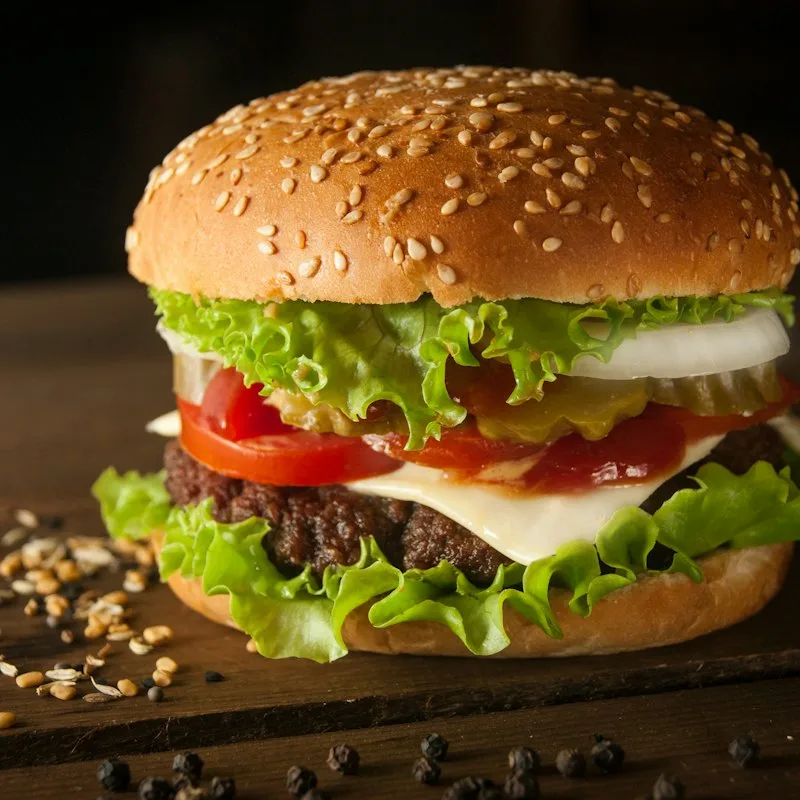
Classic Burger
180 g180 g beef patty, lettuce, tomato, red onion, pickle, burger sauce.
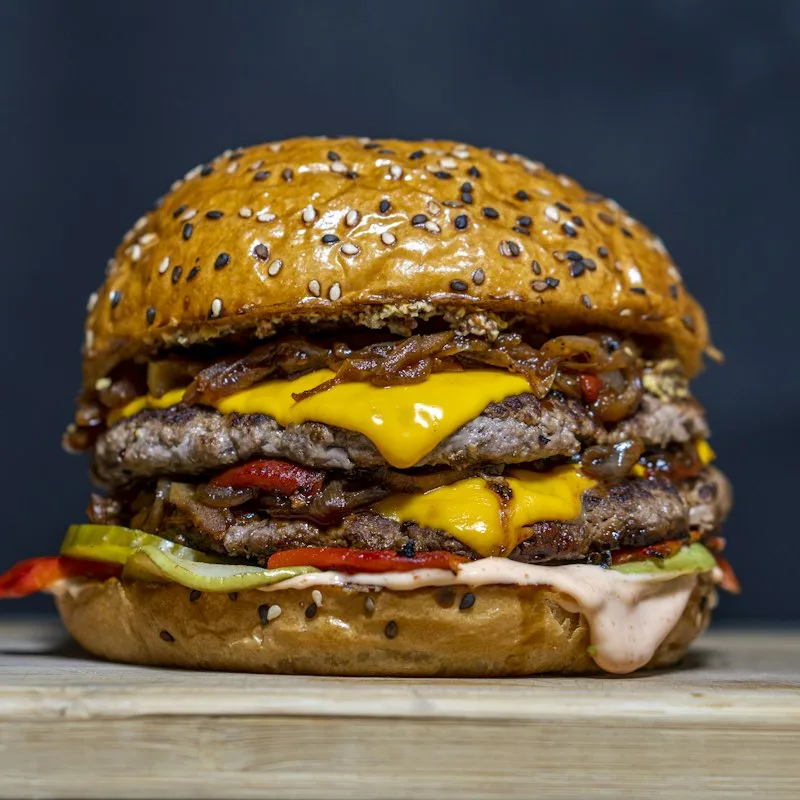
Cheeseburger
180 g180 g beef patty, double cheddar, caramelized onion, mustard, ketchup.
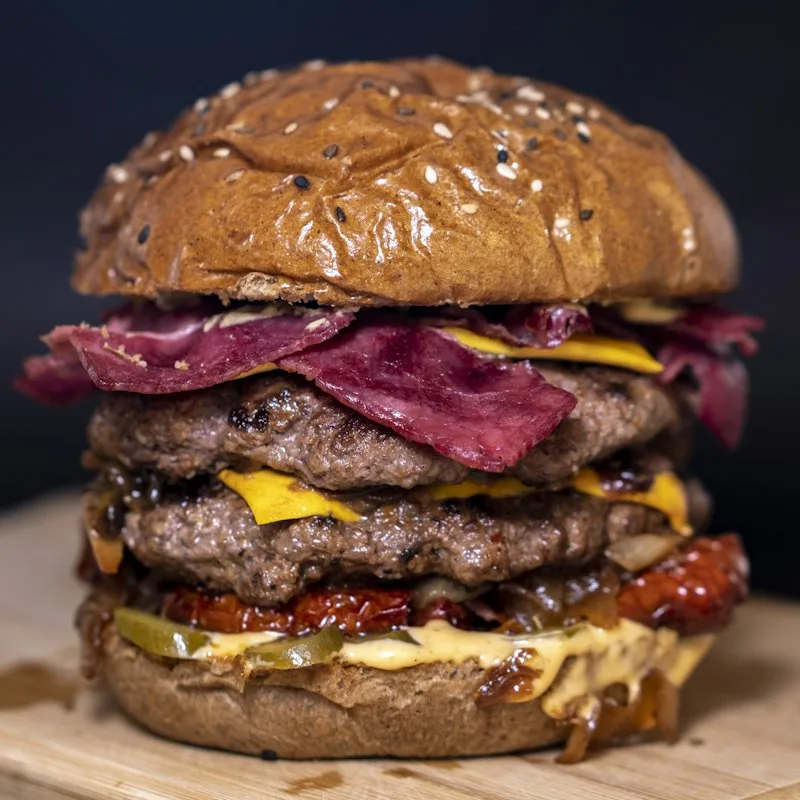
Bacon BBQ Burger
180 g180 g beef patty, crispy bacon, cheddar, onion rings, BBQ sauce.
On your website
A menu customers can order from right away.
The menu uses WooCommerce products and categories, but it looks like a restaurant menu, not an online shop. The standard shop pages redirect to the menu.
A block for any theme
Place the menu anywhere with a Gutenberg block or a shortcode. You can add category navigation separately.
Dish window
Photo, description, portion, labels, allergens and add-ons in one view. On phones, the dish details slide up from the bottom of the screen.
InPlate cart
The cart icon shows the number of items. In the slide-out panel, customers check their items, add-ons and the total.
Featured dish
A single-dish block, e.g. to show the daily special on your venue’s homepage.
Dish unavailable? Show it on the menu
You either hide an unavailable product or show it with your own label, e.g. “Unavailable today”.
Turn it off with one click
If the soup runs out, you mark it as unavailable without deleting the product. The next day you can put it back on the menu.
Dishes and offers available on the dates you choose
Daily specials and seasonal offers, available at the right time.
A daily special, a weekend soup or a holiday offer can each have their own availability period. You prepare them in advance, and the system shows and hides the items at the right time.
You decide how long
A dish can be available for one day, a week, a weekend or a whole season. Set the start and end dates, and it appears on the menu and disappears at the right time.
Plan ahead
You can prepare your holiday menu as early as November. Customers only see it on the first day of the offer. Once it ends, these dishes can no longer be ordered.
Your own offer types
You can create your own offer types, e.g. a daily special, a soup of the day, a burger of the week or a holiday menu.
They work like any other WooCommerce product
Each of these items is a WooCommerce product. It can have add-ons and go into the cart like any other dish.
From a tablet in the kitchen
The person running the venue can add an offer in the “InPlate dishes” panel on a tablet, without logging in to WordPress.
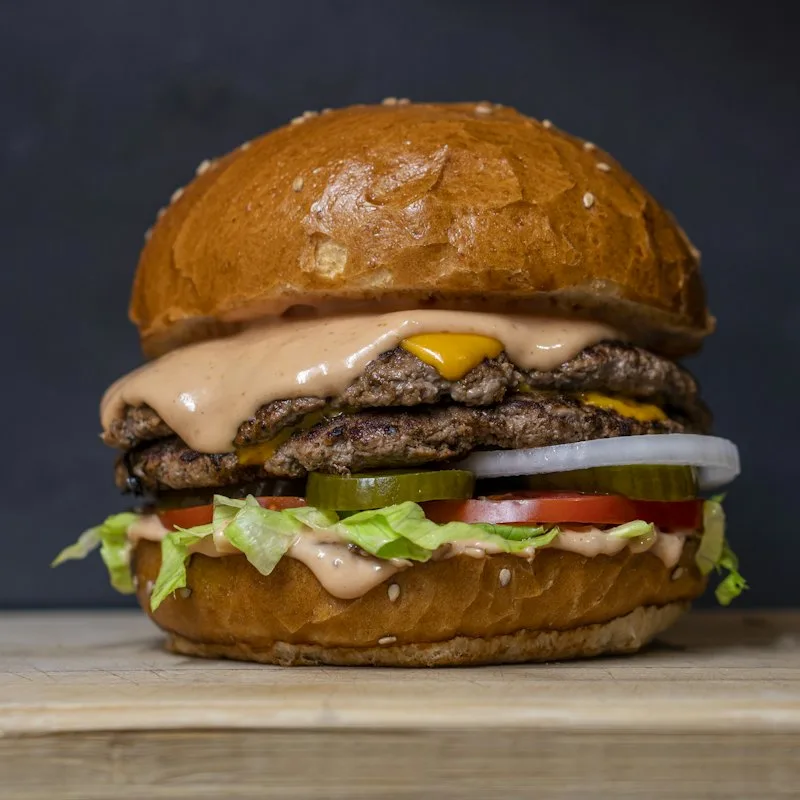
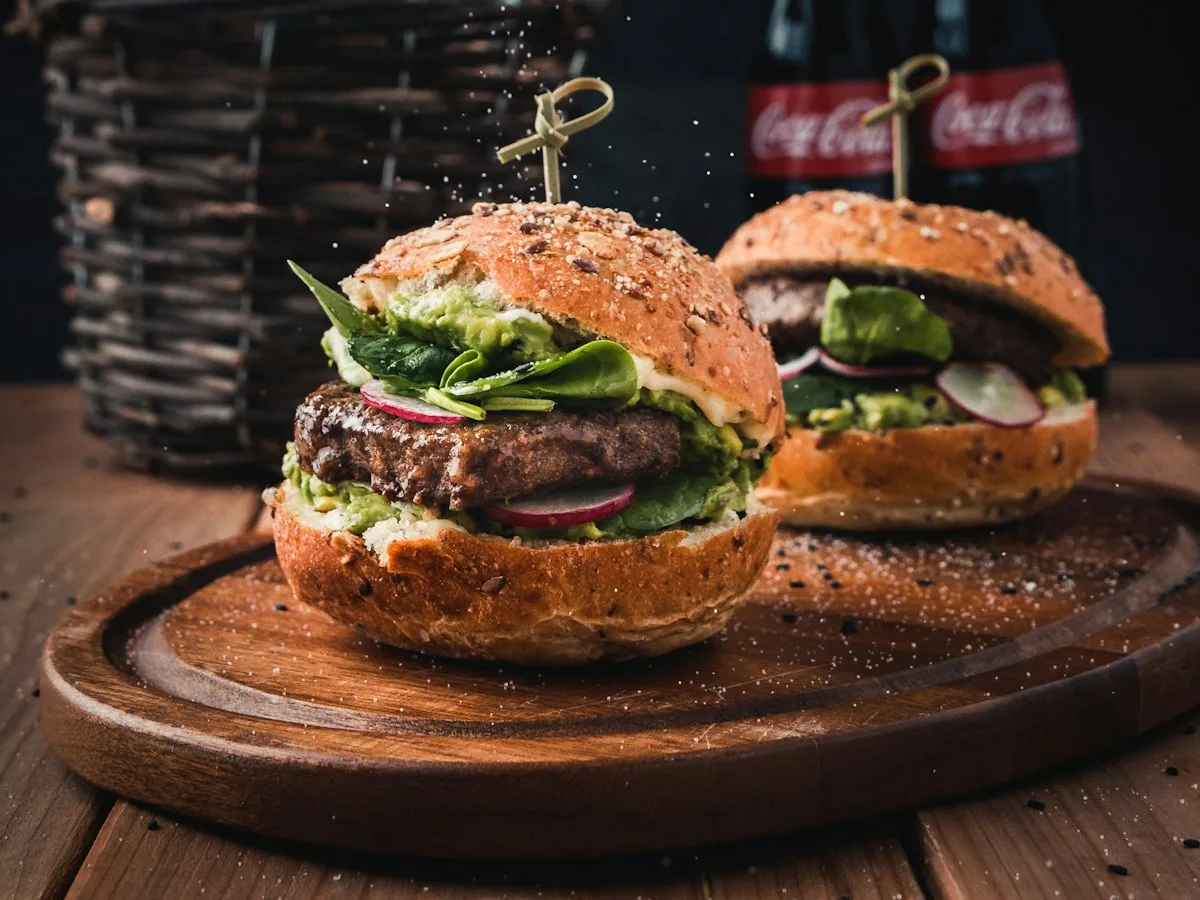
Burger of the week: jalapeño smash
220 gUntil Sunday. Double beef, cheddar, jalapeño, chipotle mayo.
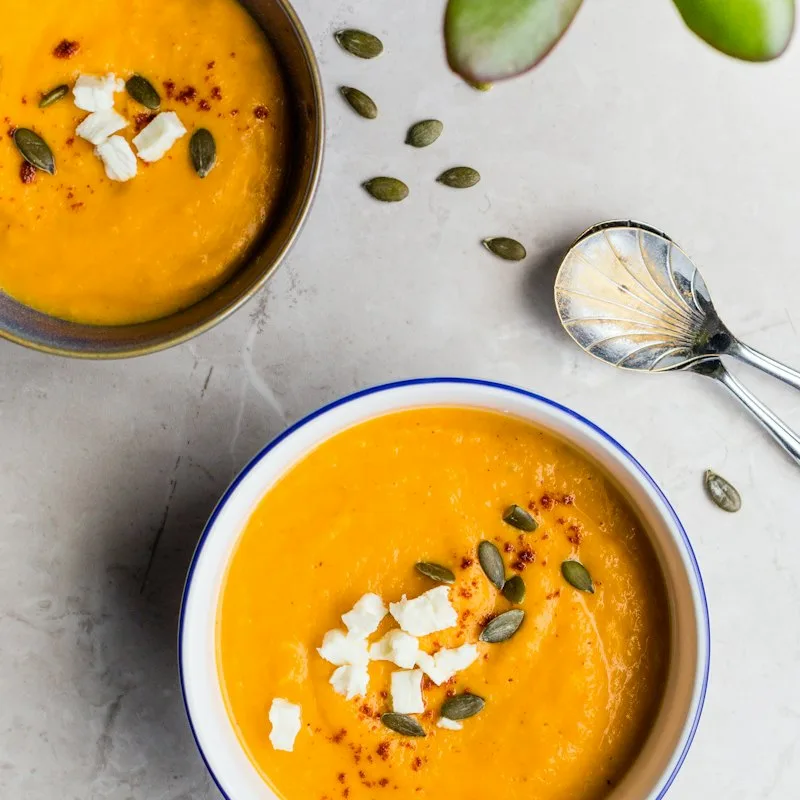
Autumn special: cream of pumpkin soup
300 mlUntil the end of November. Toasted seeds, pumpkin seed oil, croutons.
Sizes, add-ons and suggested items
Sizes, add-ons and suggestions for other items.
Customers choose the size of a dish, a sauce or ingredients, e.g. the “no onion” option. The kitchen sees these choices with the order. You can also suggest fries, a drink or a dessert.
Sizes with their own prices
32 and 40 cm pizza, 100 and 200 g burgers, small and large soup. You assign a size set to a whole category and enter the prices of all dishes in one table. The menu card shows, e.g., “from €9.50”.
Different kinds of add-ons
Add-ons can be picked from a list or chosen with a checkbox, a toggle or a quantity counter. Each one can be required or optional, free or paid.
Templates for whole categories
Prepare a “Burger sauces” list and assign it to the whole burger category. You can set exceptions on individual dishes.
The server calculates prices
Surcharges follow WooCommerce taxes, show up in the order and are checked on the server.
Packaging for takeaway only
Add a packaging charge to each dish only for pickup and delivery, even an amount that depends on the size. Customers see it under the price right on the menu.
Suggested extras for the order
Suggest fries or a drink with a burger, or a dessert with a lunch set. You set suggested items for a single dish or for a whole category.
Dish information
Weight, labels, allergens and price information.
For each dish you can give its weight or portion size, e.g. “300 g” or “1 bowl”. You can also add labels with icons, shown both on the menu and on TV screens.
You also mark the dish’s allergens – the 14 from EU Regulation No 1169/2011 and your own – and enter its ingredients with the allergens highlighted. Customers see them on the menu before ordering, then in the confirmation email and, if you turn this option on, on the order label.
Whenever a price reduction is shown, the menu gives the lowest price from the 30 days before it, as required by the rules implementing the Omnibus Directive. WP InPlate keeps the price history itself.
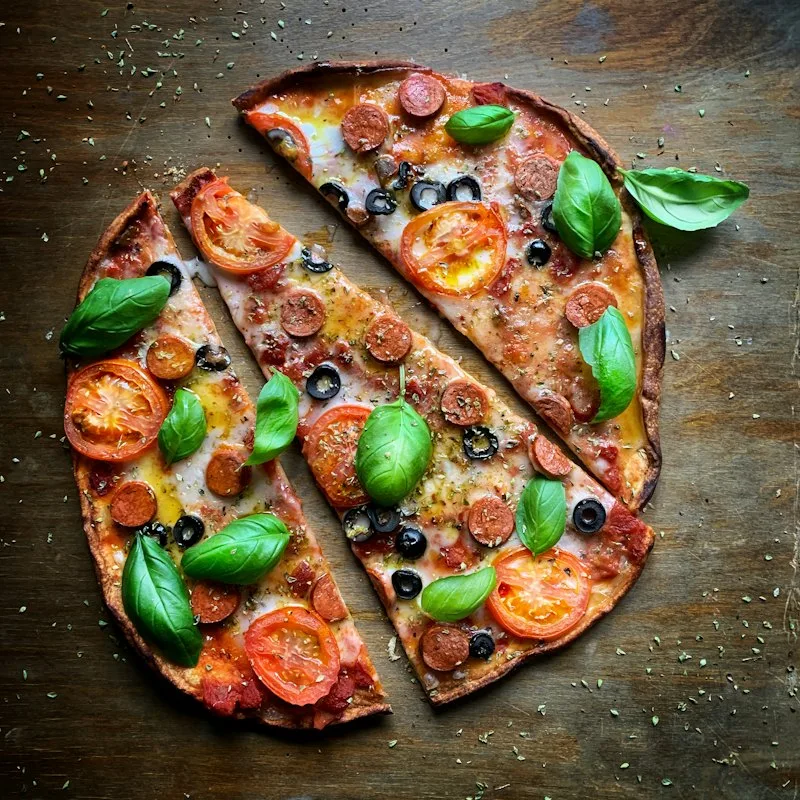
Ortolana
32 cmTomato sauce, mozzarella, grilled zucchini, eggplant, bell pepper, arugula.
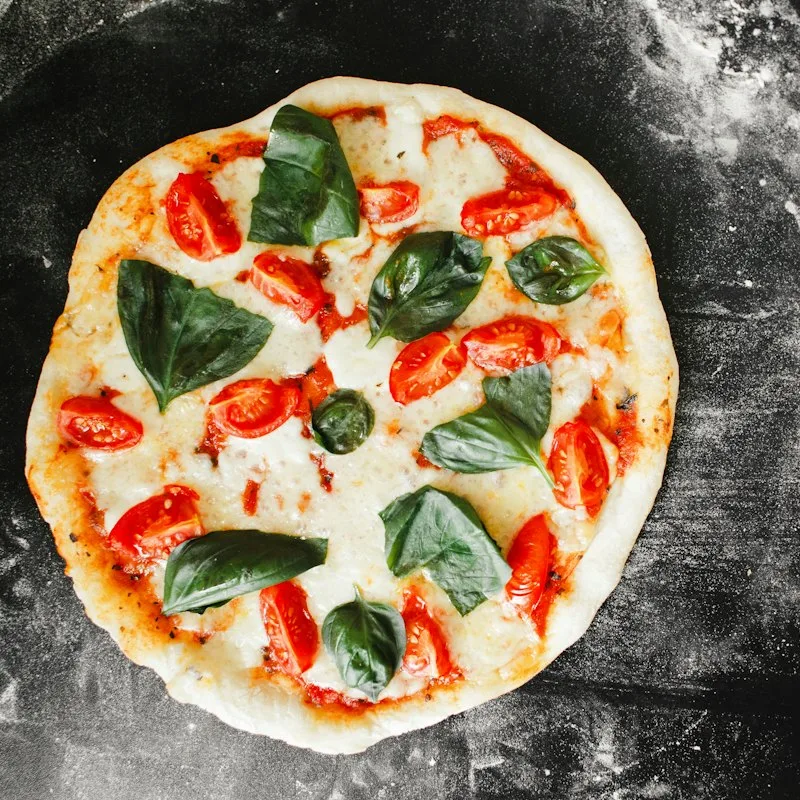
Margherita
32 cmTomato sauce, fior di latte mozzarella, basil, olive oil.
Next: the order form
From choosing dishes to placing the order.
Customers choose pickup, delivery or dine-in. Before the order is placed, the system checks the address, the delivery zone, the minimum order amount and the available times.
FAQ
Frequently asked questions about the online menu.
Didn’t find your answer? Write to us. We’ll answer your questions about the product.
Take orders on your restaurant’s own website.
For 30 days you can try WP InPlate with your own menu, pickup times, delivery and kitchen display. If you need help getting started, get in touch.
No card required. Cancel anytime.