
Kitchen display (KDS)
Every order on the kitchen display.
A new order appears in the kitchen with a sound alert. Staff change its status from “New” to “In preparation”, and then to “Ready”. For pickup orders, the customer gets an email saying the food is ready to collect.
No card required · Every module included · 0% commission
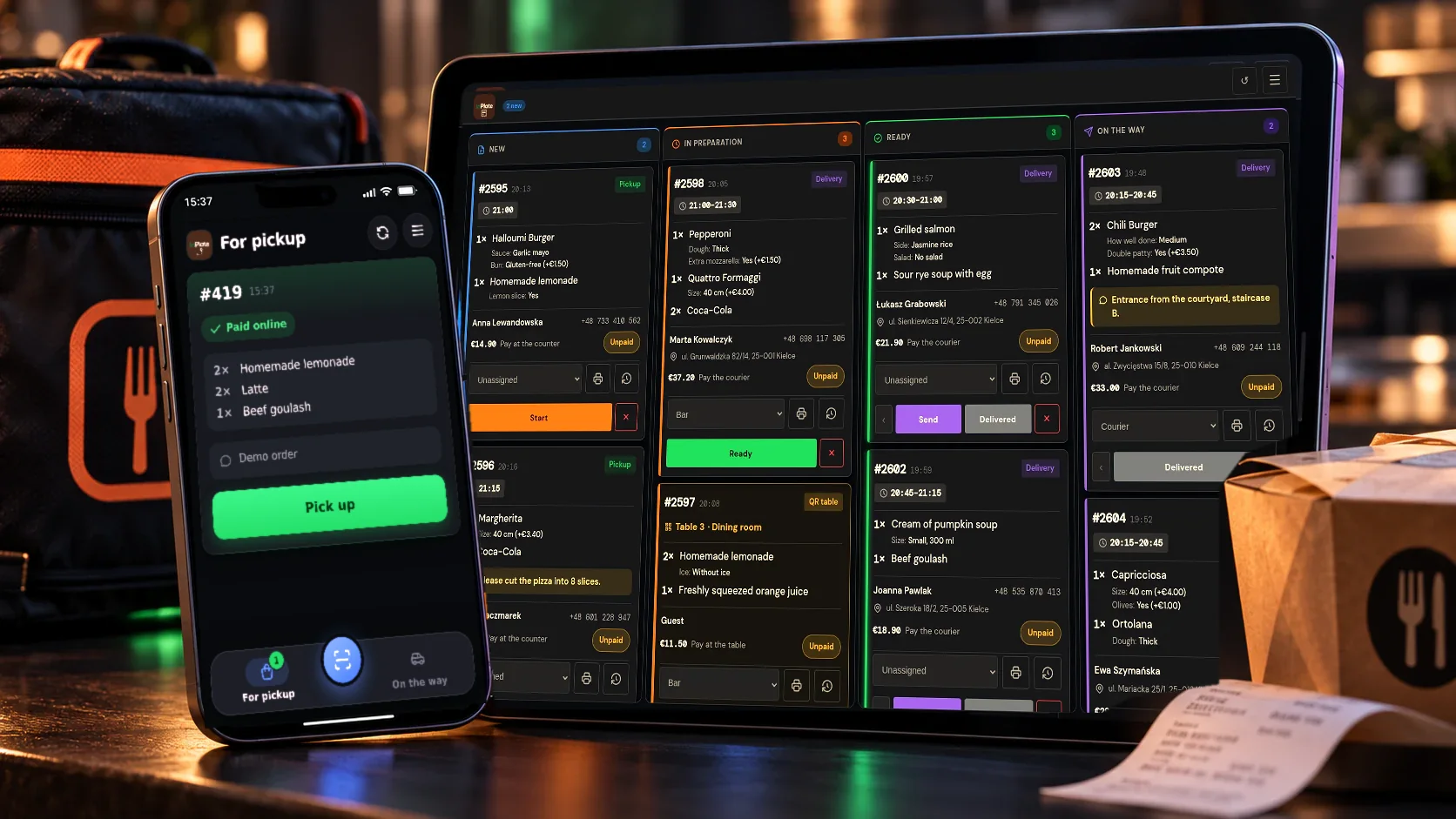
Order board
Every order and its status on one screen.
Orders from your website, for pickup, delivery and from QR tables, appear on the kitchen display. The KDS runs in a browser on a tablet or a computer.
| No. | What you see on the board |
|---|---|
| 1 | Orders by status |
| 2 | New order alert |
| 3 | Pickup or delivery |
| 4 | Order details on tap |
| 5 | Assigning an order to a staff member |
| 6 | One-tap status change |
| 7 | Label with a QR code |
| 8 | Order history |
KDS features
Friday, 12:30. New orders go straight to the kitchen display.
The “Orders” view
Each order appears in the column for its status: New, In preparation, Ready or On the way. You change the status with one tap.
New order alert and an awake screen
A sound announces new orders. On supported devices, the screen can stay on while you work.
Filters by fulfillment method
Delivery, pickup, dine-in, QR tables. Plus “Assigned to me” and “Unpaid”.
Details of every order
The order card shows the items, add-ons, notes, discounts and customer details, depending on the permissions assigned.
Assigning to people
Orders can be assigned to a cook or a courier. Staff members can view the ones they’re responsible for.
Reason for canceling an order
When you cancel an order, you give a reason. The history shows who changed the order’s status and when.
Shift summary
The summary gives you the number of orders, revenue, cancellations, and figures on fulfillment methods and each person’s work.
List and archive
Besides the “Orders” view, there’s a list and an archive (7 days by default) with status and period filters.
PL, EN, UA
A language switch for the interface, for teams that don’t all speak the same language.
Manager panel
Change the menu and prices right from a tablet.
A staff member with the right permissions can use the manager panel to change the availability of dishes and their sizes, prices, promotions, happy hours and ordering hours, and to manage the menu on TV screens.
InPlate dishes
Add a daily special, a soup or a lunch from a tablet. Once their availability period ends, the dishes are no longer shown on the menu.
Products
You can turn individual products, their sizes or whole categories on and off, and change regular and sale prices. On the menu you show just the sale price or the crossed-out regular price as well, and with a reduction customers see the lowest price from the last 30 days.
Variants
Create a size set, e.g. 32 and 40 cm, and enter the prices of all dishes in one table. A preview shows what will change before you click “Apply”.
Happy hours
A discount on chosen days and at chosen times, e.g. −20% on burgers Monday to Friday, 15:00–17:00. The tab appears once you turn on happy hours in the settings.
Schedule
Set the hours and days you take orders, plus exceptions for holidays or vacations.
TV
Add dishes to TV screens, reorder them by dragging with your finger and mark them, e.g., “Today’s pick”.
Roles and permissions
Permissions that match each staff member’s role.
Ready-made profiles
There are Cook, Courier, Cashier and Manager roles. One person can have several roles, e.g. cook and deliver orders.
Detailed permissions
Decide who can change statuses, cancel and assign orders, edit the menu, and see customer data and prices.
Minimum access
Each staff member gets access to the features they need for their job.
What you need
A tablet or a computer is all the kitchen needs.
The KDS runs in a browser. You don’t need a special order printer.
A tablet or a computer
You can run the KDS on a tablet or a computer with an up-to-date browser and add it to the device as a PWA app.
HTTPS on your website
It’s required to install the KDS and the courier panel as an app.
Turn on sound at the start of the shift
Browsers can block sound from playing automatically. That’s why, at the start of a shift, a staff member should tap the screen to turn on notifications.
Interactive demo
Try the kitchen display without installing anything.
The interactive demo shows the “Orders” view, handling an order, the QR label and a preview of the courier panel. It uses sample data.
FAQ
Questions about the KDS kitchen display.
Didn’t find your answer? Write to us. We’ll answer your questions about the product.
Take orders on your restaurant’s own website.
For 30 days you can try WP InPlate with your own menu, pickup times, delivery and kitchen display. If you need help getting started, get in touch.
No card required. Cancel anytime.