
Pickup and delivery
Delivery zones and pickup orders.
Draw zones on a map, set the delivery fee and the minimum order value. Customers choose pickup or delivery and a time. The system checks the address and the available times before accepting the order.
No card required · Every module included · 0% commission
Burgers
Juicy aged-beef burgers in a buttery brioche bun.
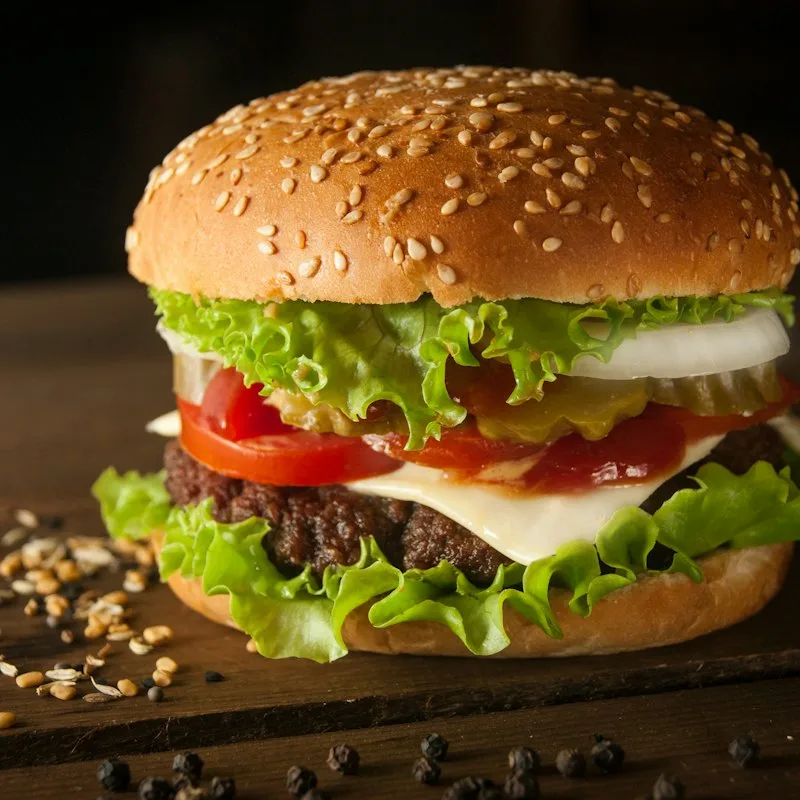
Classic Burger
180 g180 g beef patty, lettuce, tomato, red onion, pickle, burger sauce.

Cheeseburger
180 g180 g beef patty, double cheddar, caramelized onion, mustard, ketchup.
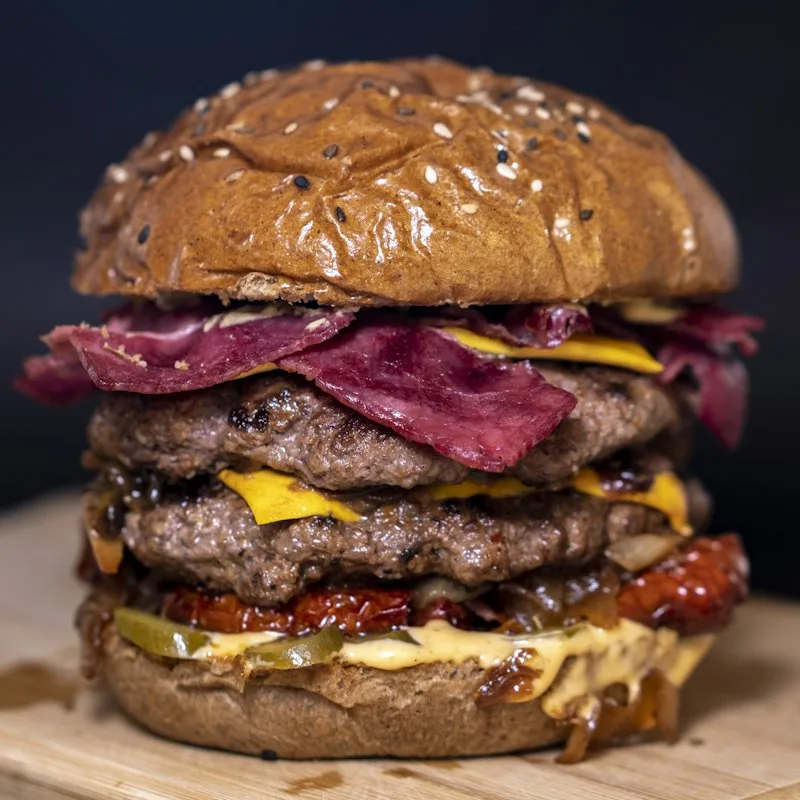
Bacon BBQ Burger
180 g180 g beef patty, crispy bacon, cheddar, onion rings, BBQ sauce.

Chili Burger
180 g180 g beef patty, jalapeño, pepper jack, roasted pepper salsa, sriracha mayo.
Fulfillment methods
Pickup, delivery and dine-in in one form.
You can give each fulfillment method its own name, e.g. “Window pickup”, and set separate hours, preparation times and available times.
Pickup
Customers choose a pickup time. They get an email when the order is ready.
Delivery
The system checks whether the customer’s address is within a delivery zone, then applies the right fee and the minimum order amount.
Dine-in
With the “I’ll eat here” option, customers choose an available time within your venue’s opening hours.
QR table
Customers scan the code at their table and order for that specific table.
Schedule and hours
Set ordering hours that match your kitchen’s work.
You set the ordering hours, the preparation time, the available times and days off. Customers can’t choose a time when the kitchen isn’t taking orders.
Separate hours for each method
Pickup, delivery and dine-in can be available at different hours. You can also set a separate schedule for orders from QR codes at the tables.
Preparation time and window length
The system takes the preparation time into account when it sets the first available time. You set the spacing between times separately for each method.
Order deadline
You can stop taking lunch orders at 11:00. You can also set hours that run past midnight, e.g. 20:00–02:00.
Closed days and exceptions
Set days off, holidays and breaks. Also decide whether customers can order for tomorrow once you stop taking orders for today.
Information about available times
Outside opening hours, customers see when they can order. You can also change the schedule from a tablet in the manager panel.
Delivery zones
Delivery zones with their own fees and minimum order amounts.
For example, in the city center you set a €40 minimum order and €5 delivery, and in the outer districts a €70 minimum and €10 delivery. Outside the area you’ve drawn, customers can choose pickup.
A circle or any shape
Set a zone as a circle around your venue or draw its borders on the map, e.g. along a river or a ring road.
Delivery fee, order minimum and priority
Each zone has its own delivery fee, minimum order value, priority and an on/off switch.
Topping up to the minimum
If an order is just short of the minimum amount, customers can add an item. You can also let them pay the missing amount.
Zones on an OpenStreetMap map
Addresses are looked up with Nominatim, based on OpenStreetMap data. You don’t need to set up a Google Maps key.
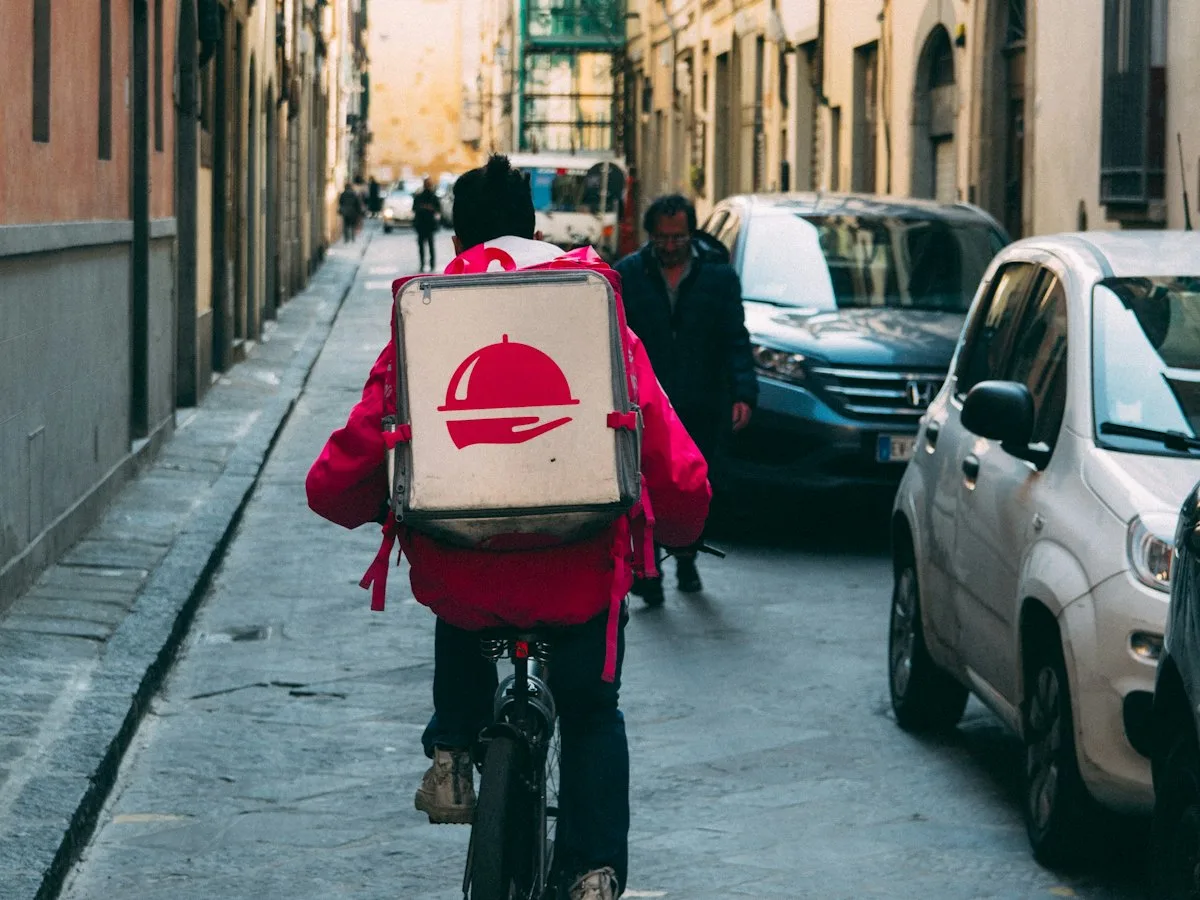
Delivery check
Do you deliver to the customer’s address?
Add a delivery check to any page as a Gutenberg block. Customers can check right away whether their address is in a zone you serve.
Delivery choice first, then the address
Customers choose “delivery” or “dine-in”. For delivery, they enter their address before they start ordering.
The result of the address check
If the address is in a zone you serve, the system shows the delivery fee and the required minimum. Otherwise, it can suggest pickup.
It works after hours, too
Customers see your opening hours and delivery area. The fulfillment method they chose carries over to the order form.
Order form
An order form for food businesses.
Customers choose the fulfillment method, the time, the address and the payment. Before accepting the order, the system checks the rules your venue has set.
Method, day and time
Customers choose pickup, delivery, dine-in or a table, and the fulfillment time.
Checks before payment
The system checks the ordering hours, the delivery zone, the cart minimum, dish availability and add-on prices again.
Coupons and editing in the cart
In the cart, customers can enter a WooCommerce discount code and change the add-ons of individual dishes without going back to the menu.
Clear messages
If a chosen dish becomes unavailable, the customer is told before placing the order. You can optionally protect the form with Google reCAPTCHA.
Payments
Pay online, in cash or at the table.
WP InPlate takes no commission on orders. Online payments are subject to the rates of the payment provider you choose.
Online payments
You can take online payments through WooCommerce gateways such as Przelewy24, Stripe or PayU. Any fees come from your chosen provider’s price list.
Cash on pickup and delivery
You can offer cash payment on pickup or delivery. The system shows it only when it fits the chosen fulfillment method.
Pay at the table
For QR code orders, if you prefer to settle the bill in the dining room.
Unpaid orders visible in the kitchen
The KDS shows unpaid orders and lets you mark them as paid.
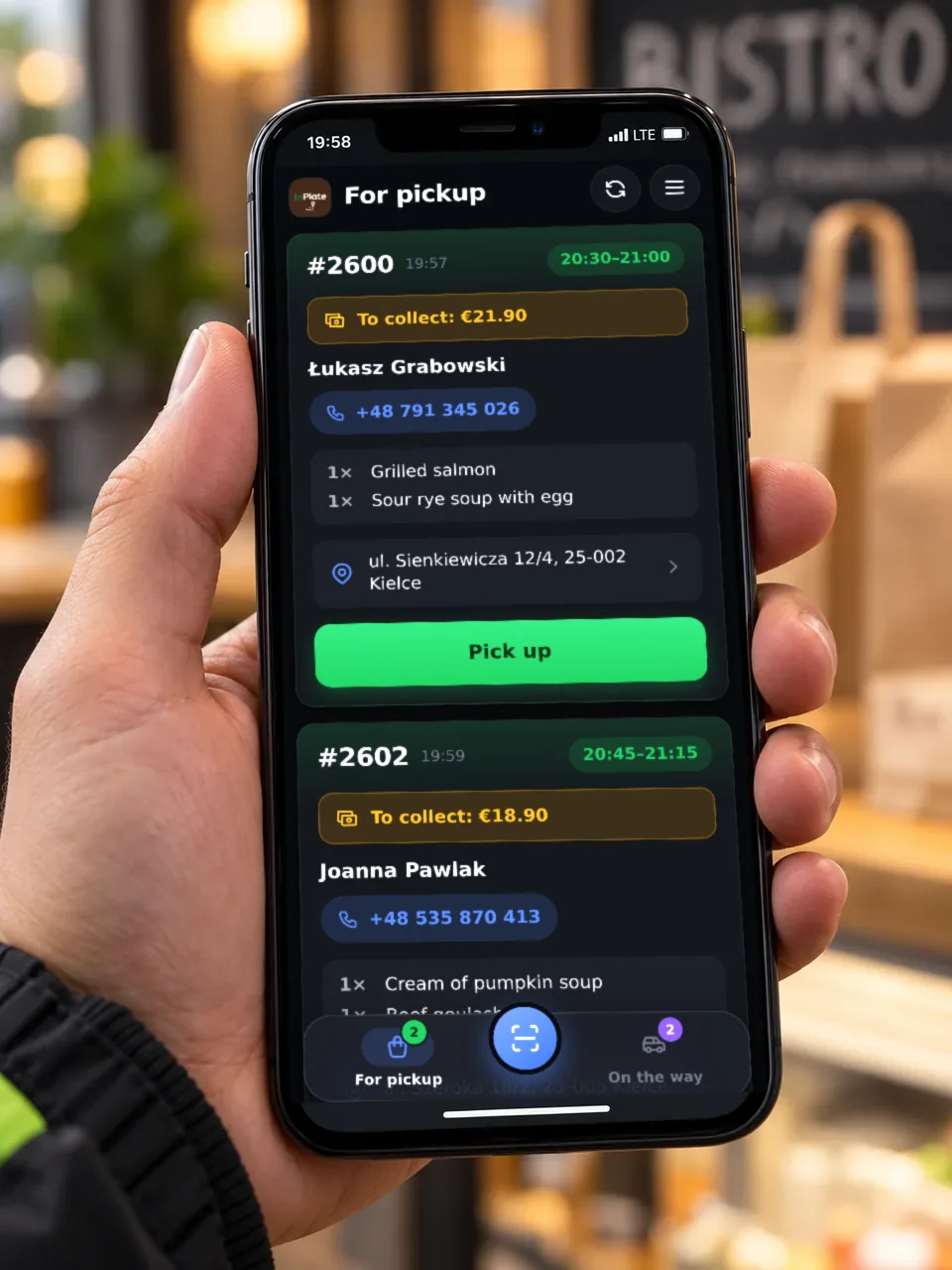
Courier panel
The courier panel on a phone.
Couriers check orders ready for delivery, addresses and amounts to collect on their phone. You handle deliveries yourself.
A pool of orders ready for delivery
The courier takes a ready order, changes its status to “On the way” and, after delivering it, to “Delivered”. The customer gets an email.
Amount to collect and navigation
For cash payments, the courier sees how much to collect. Navigation guides them to the customer using the address coordinates.
Delays and failed deliveries
Couriers can report a delay or a failed delivery and give a reason. The event stays visible in the order history.
Archive and the QR code on the label
Couriers have an archive of their own deliveries and scan the QR code on the label on the bag.
The courier panel works as a web app (PWA). It can be added to the phone’s home screen without downloading it from an app store.
Notifications and labels
Customer notifications and order labels.
Order status emails
On top of the standard WooCommerce emails, customers can get a “Ready for pickup” or “On the way” email when the kitchen changes the status.
Label with a QR code
The label has the order details, the items, the fulfillment method, the discount and the amount. You can match its size to your printer and stick it on the bag.
Printing without a receipt printer
The label helps you handle the order, but it isn’t a fiscal receipt. You print it through the browser’s standard print dialog.
FAQ
Questions about pickup and delivery.
Didn’t find your answer? Write to us. We’ll answer your questions about the product.
Take orders on your restaurant’s own website.
For 30 days you can try WP InPlate with your own menu, pickup times, delivery and kitchen display. If you need help getting started, get in touch.
No card required. Cancel anytime.